WordPress performance optimization should begin with a bottleneck, not a plugin.
A slow WordPress site can come from an overloaded server, an expensive database query, an oversized hero image, a page builder loading assets everywhere, a third-party script blocking the main thread, or several caching tools trying to control the same response. Those problems can feel identical to a visitor. They do not have the same fix.
Installing another speed plugin before you know what is slow can hide the symptom, duplicate an existing feature, or make the site harder to diagnose. A better approach is to test representative pages, identify the first meaningful constraint, and work through the stack in a deliberate order.
This guide provides that order.
The short answer: fix WordPress performance in this order
- Measure representative pages and record a baseline.
- Check server response, hosting limits, and application health.
- Reduce image and page weight, especially above the fold.
- Remove unnecessary template, font, and CSS overhead.
- Configure page caching, browser caching, compression, and a CDN where appropriate.
- Reduce JavaScript and third-party work that delays interaction.
- Audit plugins and the theme in a safe staging environment.
- Tune the database only when evidence points there.
- Retest on mobile, across key templates, and after every meaningful change.
The order matters. If the server takes too long to begin the response, compressing another icon will not solve the primary delay. If the server is fast but the page loads a 4 MB hero image, a database cleanup will not repair the visitor’s experience.
Start with a useful baseline
Do not test only the homepage. A WordPress site is a collection of templates, content types, integrations, and visitor paths.
Build a small test set that includes:
- the homepage
- one core service or product page
- one article with several images
- a high-traffic landing page
- a form, booking, cart, or other conversion page
- a page known to contain an embed, map, chat tool, or tracking stack
For each page, record the test date, device profile, location, Core Web Vitals or lab metrics, total page weight, request count, server response, and the largest files or longest tasks. Use the same conditions when you retest.
Google’s current Core Web Vitals evaluate loading with Largest Contentful Paint, responsiveness with Interaction to Next Paint, and visual stability with Cumulative Layout Shift. The recommended “good” thresholds are LCP within 2.5 seconds, INP at or below 200 milliseconds, and CLS at or below 0.1 at the 75th percentile of visits.
Those are field-experience targets, not three knobs inside WordPress. Lab tools help you reproduce and investigate a problem. Field data tells you what eligible real visitors experienced over time. Use both.
Also check whether the page being tested is cached, whether you are logged in, and whether a consent banner or personalization changes the result. An admin session can bypass caches and load scripts a normal visitor never sees.
Fix 1: Check server response and application health
Time to First Byte measures how long it takes from requesting a page until the first byte of the response arrives. Web.dev offers 0.8 seconds or less as a rough TTFB guide, while noting that context matters. Treat it as an investigation signal, not a promise that every page on every stack must match one universal number.
If the initial response is consistently slow, inspect the foundation before front-end polish:
- hosting CPU, memory, storage, and worker limits
- supported PHP version and PHP error logs
- WordPress Site Health warnings
- uncached page generation time
- slow database queries or external API calls
- redirect chains before the final URL
- DNS and CDN routing
- uptime incidents or traffic spikes
- scheduled jobs, backups, scans, or imports competing for resources
Compare a cached response with an uncached one. If the cached version is fast but the uncached version is extremely slow, the application still has work to do. A page cache may protect public traffic, but administrators, personalized pages, cart sessions, searches, and cache misses can continue to suffer.
Do not change the host automatically. First establish whether the constraint is the hosting plan, the application, a remote dependency, or a configuration issue. A better server cannot make an unnecessary six-second API call disappear.
Fix 2: Identify the actual largest element above the fold
Largest Contentful Paint is often an image, but it can also be a heading, banner, background, or content block. Inspect the reported LCP element on each important template.
If the LCP element is an image:
- export it near the dimensions at which it is displayed
- use an appropriate modern format when browser and workflow support allow it
- keep the real width and height attributes so the browser can reserve space
- provide responsive image sizes rather than sending the desktop file to every phone
- avoid lazy-loading the primary above-the-fold image
- give the browser a clear path to discover the image early
If the LCP element is text, investigate delayed font loading, render-blocking styles, injected headings, or a container that stays hidden until JavaScript runs.
Be careful with rotating banners. A carousel may load several large images, delay the first meaningful visual, and shift layout while offering little value to the person trying to understand the page. One focused message is often easier to optimize and easier to act on.
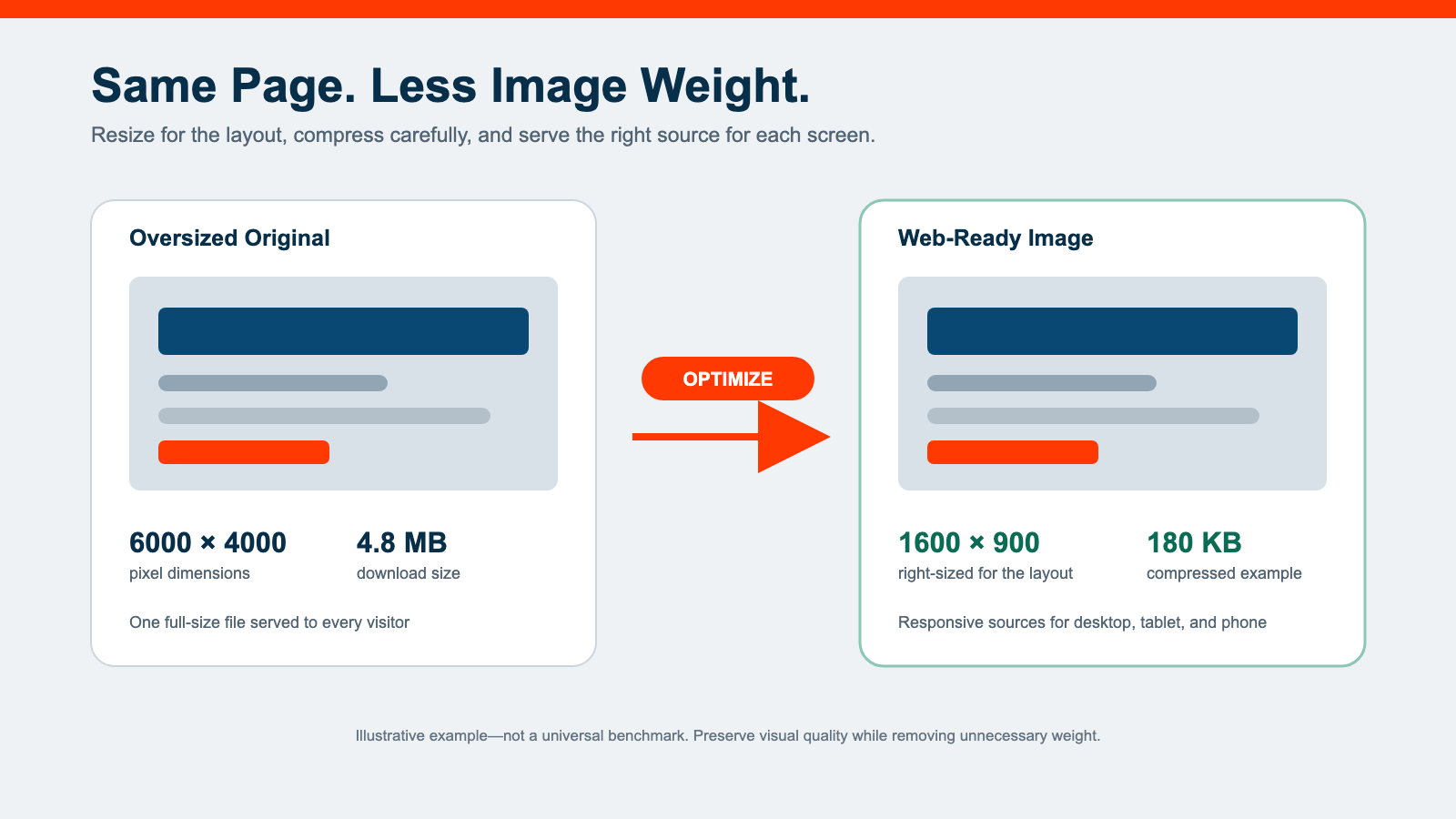
Fix 3: Reduce image and page weight
The LCP image is only the beginning. Long pages can quietly collect full-size photos, duplicate mobile and desktop assets, uncompressed PNG files, video backgrounds, map embeds, and social widgets.
Review the network waterfall by file size and type. Then:
- resize source images before upload instead of relying only on CSS
- compress photographic images at a quality that still looks credible
- preserve PNG or SVG only when transparency or sharp vector detail requires it
- lazy-load below-the-fold media
- replace decorative video with a still image when motion does not add useful information
- use a click-to-load treatment for heavy maps or videos when appropriate
- remove media that repeats the same idea without helping the reader decide or act
Image optimization should preserve the brand. A fuzzy, overcompressed project photo can make a professional service look less trustworthy. The goal is the smallest credible asset, not the smallest possible file.
If the site needs coordinated technical cleanup and a clearer customer path, a Website Refresh & Performance Tune-Up can address both instead of treating speed as an isolated score.
Fix 4: Reduce template, font, and CSS overhead
WordPress themes, page builders, block libraries, and add-ons may enqueue files across the entire site even when a page uses one small component.
Inspect what the template loads before deleting anything. Common opportunities include:
- unused widget or block-library assets
- global styles for components that appear on one page
- several icon libraries serving similar symbols
- multiple font families and unnecessary font weights
- duplicate CSS created by overlapping optimization tools
- legacy templates that still load after a redesign
- header or footer scripts added by an old campaign
Fonts deserve specific attention. Each family, weight, and style may require another file. Use a small, intentional set, preload only the files needed immediately, and define a sensible fallback so text remains visible while the font loads.
Critical CSS, deferred styles, and asset unloading can help, but they also introduce breakage risk. Test menus, forms, accordions, sticky elements, and responsive layouts after every change. Never assume a clean performance report means the page still works.
Fix 5: Configure caching, compression, and delivery deliberately
Caching can reduce repeated work and move content closer to visitors, but the layers need clear ownership.
A typical stack may include:
- full-page caching at the host, server, CDN, or WordPress layer
- browser caching for static assets
- object caching for repeated database work
- compression such as Brotli or gzip
- a CDN for images, scripts, styles, or full pages
Avoid enabling the same function in several places without understanding precedence and purge behavior. Two tools may both minify the same file, delay the same script, or rewrite the same image URL. When something breaks, nobody knows which layer caused it.
Document where each feature is controlled, which pages must bypass cache, and how a content editor clears the correct layer after an update. Confirm that forms, account pages, carts, search, personalization, and logged-in experiences are excluded where required.
Then test the first visit and repeat visit separately. A warm-cache result can conceal a poor first experience.
Fix 6: Reduce JavaScript and third-party work
Interaction to Next Paint reflects how quickly a page responds throughout a visit. A page can look loaded while the browser remains busy parsing scripts, initializing widgets, changing the layout, or processing tracking events.
Start with the longest main-thread tasks and the scripts that run on every template. Common sources include:
- chat and scheduling widgets
- heatmaps and session recording
- advertising and retargeting tags
- tag-manager containers with old rules
- animation libraries
- sliders and popup tools
- social feeds
- form or CRM scripts loaded sitewide
Ask three questions about every third-party script:
- Does the business still use the feature or the data?
- Does it need to load on this page?
- Does it need to load before the visitor interacts with it?
Removing an abandoned tag is usually safer than layering more delay logic around it. For necessary tools, load them only on relevant pages or after an intentional interaction when the customer experience permits it.
Validate the result beyond the report. A delayed scheduling widget that no longer opens is not an optimization win.
Fix 7: Audit plugins and the theme safely
Plugin count alone does not determine speed. One poorly designed plugin can create more work than several focused, efficient plugins. The meaningful questions are what each extension loads, queries, schedules, stores, and calls.
Create a plugin inventory with:
- business purpose
- current owner
- last verified use
- pages or users affected
- front-end assets loaded
- database tables or scheduled tasks created
- remote services contacted
- safe rollback plan
Perform deactivation tests on staging or another controlled copy, not on the live site during business hours. Check visual templates, forms, CRM handoffs, analytics, search, redirects, structured data, ecommerce, email delivery, and admin workflows.
The same discipline applies to the theme and child theme. Remove abandoned template code only after confirming where it is used and preserving a recovery path.
Fix 8: Tune the database when evidence points there
Database cleanup is useful when autoloaded options, revisions, expired transients, log tables, orphaned records, or inefficient queries are materially affecting requests. It should not be the default explanation for every slow page.
Before changing data:
- take a tested backup
- identify the table and the plugin or feature that owns it
- measure query behavior
- confirm whether the data is still required
- use a staging copy for cleanup rehearsal
- record exactly what will be removed and how to restore it
A one-time cleanup may reduce clutter. It will not repair a plugin that keeps writing the same unnecessary data every day. Fix the source as well as the accumulation.
Test the pages and devices that affect real customers
Desktop lab tests on a fast office connection are not enough. Retest the representative set on mobile and include the interactions customers rely on:
- open and close the navigation
- tap the main call-to-action
- submit each important form
- use click-to-call and map links
- open scheduling, chat, or quote tools
- accept or reject the consent banner
- complete checkout or account actions when applicable
- rotate the device and verify the layout does not jump
Use real phones when possible. Throttle lab tests to expose weaker connections and slower processors, then compare those findings with field data as it accumulates.
Watch for tradeoffs. Delaying a form script may improve a lab score but postpone the moment a visitor can request service. Moving an image can improve LCP while weakening the explanation above the fold. Performance work succeeds when the site becomes faster and remains useful.
For a broader view of how speed, structure, copy, and trust work together, review what makes a website convert.

A 30-minute WordPress performance triage
If you need a fast first pass, use this sequence:
- Test the homepage, a core service page, and one content-heavy page on mobile.
- Record LCP, INP or lab blocking signals, CLS, TTFB, page weight, and request count.
- Identify the LCP element and the three largest files.
- Identify the three longest main-thread tasks or slowest requests.
- Check the server and PHP logs for warnings or timeouts.
- List third-party scripts and confirm whether each is still needed.
- Compare a cached and uncached response.
- Choose one root-level change, test it safely, and retest the same pages.
Do not make eight changes at once. You will lose the ability to attribute the result and make rollback harder.
When a tune-up is enough—and when the site needs more
A performance tune-up may be enough when the content structure and conversion path are sound, the WordPress stack is maintainable, and a few measurable constraints are causing the delay.
A more substantial web design and development project may be appropriate when:
- the theme or builder is no longer safely maintainable
- templates are duplicated and inconsistent
- navigation and service structure confuse visitors
- important actions depend on fragile custom code
- accessibility and mobile problems are embedded in the layout
- the site cannot support current offers, proof, or measurement needs
Do not rebuild solely because a performance tool produced a red score. Start with the sales conversation, customer journey, content, technology, and maintenance reality. The article on starting a website redesign with the sales conversation explains that decision in more detail.
If organic visibility is weak too, review the most common reasons a website is not ranking. Technical performance matters, but it does not replace useful pages, clear expertise, internal linking, or search intent alignment.
Frequently asked questions
The bottom line
Effective WordPress performance optimization is a controlled diagnostic process.
Measure the pages customers use. Fix the earliest meaningful constraint. Make one logical change at a time. Validate the real interaction, not just the score. Document who owns caching, scripts, plugins, and future maintenance.
MassMonopoly can audit the stack, prioritize the repair order, and complete a Website Refresh & Performance Tune-Up when the site needs a faster technical foundation without losing the message and actions that make it useful.